
Pile Group Tutorial – Example 3: Pile Group in Sand for TBM Launching
In this tutorial example, the use of the PileGroup program is demonstrated for analysing a pile group subject to TBM launching loading. This example involves a pile group consisting of 20 numbers of 1200 mm diameter CFA piles of 20 m long, which were spaced at three pile diameters in both directions.
Objectives:
1.0 Starting a new project after saving and closing the exiting project
1) Start a new project by clicking the New button in the top toolbar or clicking the New submenu under the File main menu.
A confirmation window pops up as shown in the figure below for users to save or abandon the current file before opening the default new file.

2) Click Yes button to save the changes to the current input file and open a new default input file for this example.
A default pile group analysis project with 4 piles will be created as shown in the figure below and the users can start creating the pile group analysis inputs by changing the basic parameters.

3) Save the project
Upon creating a new project in Step 2, the program does not automatically generate a project file name. It is advisable for users to save the project using a file name of their own choosing before they continue further.
2.0 Creating pile group analysis with linear analysis module
By default, nonlinear analysis module based on P-Y, T-Z, and Q-Z curves is used to model soil-structure interaction under lateral and axial loading. To undertake pile group analysis with linear analysis module based on Randolph’s elastic solutions for single piles in homogeneous or Gibson-type soils, follow the steps below:
Open the Analysis Option window by clicking the Define Analysis Option button in the top toolbar or clicking the Analysis Option submenu under the Define main menu.
The figure below shows the Analysis Option-window. By default, the analysis mode is “Nonlinear Analysis Module”. The Pile Installation Type and Settlement Analysis Option inputs will be greyed out, as they do not apply to the linear analysis module

Select “Linear Analysis Module” from the dropdown menu under Analysis Mode input field.
Click OK button to save the inputs and close the input window.
3.0 Defining linear analysis inputs
To create the linear analysis input parameters, follow the steps below:
Open the Linear Analysis Inputs window by clicking the Define Linear Analysis Inputs button in the top toolbar or clicking the Linear Analysis Inputs submenu under the Define main menu.
The figure below shows the Linear Analysis Inputs-window. The three tab menus are “Axial Stiffness”, “Lateral Stiffness”, and “Free Length”.

Select “Using Young’s Modulus (E) and Poisson’s Ratio” from the dropdown menu under Analysis Mode input field.
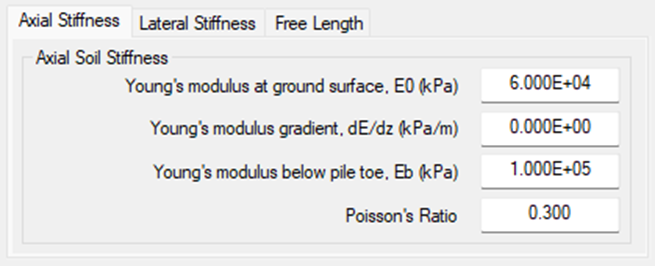
Enter 6 x 10⁴ for Young’s modulus at ground surface, E0 (kPa) under Axial Stiffness sub menu.
Enter 0.0 for Young’s modulus gradient, dE/dz (kPa/m) under Axial Stiffness sub menu.
Enter 1 x 10⁴ for Young’s modulus below pile toe, Eb (kPa) under Axial Stiffness sub menu.
Enter 0.3 for Poisson’s Ratio under Axial Stiffness sub menu.
The final inputs under Axial Stiffness sub menu are shown in the figure below.
Enter 6 x 10⁴ for Young’s modulus at ground surface, E0 (kPa) under Lateral Stiffness sub menu.
Enter 0.0 for Young’s modulus gradient, dE/dz (kPa/m) under Lateral Stiffness sub menu.
Enter 0.3 for Poisson’s Ratio under Lateral Stiffness sub menu.
The final inputs under Lateral Stiffness sub menu are shown in the figure below.

Enter 0.0 for Pile free length above the ground surface (m) under Free Length sub menu.
The final inputs under Lateral Stiffness sub menu are shown in the figure below.

Click OK button to save the inputs and close the input window.
4.0 Creating the pile section
Pile sections must be created before entering detailed inputs like positions and lengths for the pile group. To create a pile section, follow these steps:
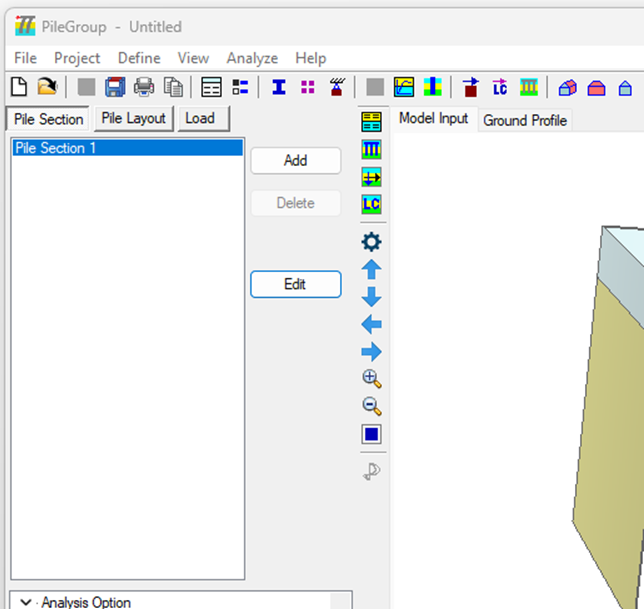
Open the Define Section window by clicking the Define Section button in the top toolbar while select the pile section from the list box under Pile Section Sub-window on the left side of the main input window or clicking the Edit button on the right side of the Pile Section Sub-window.
The figure below shows the pile section sub-window on the left side of the main input window. By default, there is one existing pile section with the name of “Pile Section 1”. This existing pile section can be modified by the users.
The Define Section window pops up as shown in the figure below.
Select “Circular” from the dropdown menu under Section Type.
Enter 1.2 m for Diameter, D under Section Dimension.
Enter 32.8 GPa for Young’s Modulus, E and 0.2 for Poisson’s Ratio, ν under Material Properties.
Enter “Pile Section 1” under Pile Section Name.
Click OK button to save the inputs and close the input window.

5.0 Creating the piles within the pile group using pile layout wizard tool
To create the piles within the pile group, follow these steps:
Open the Pile Group – Layout Table Input window by clicking the Define Pile Length and Layout button in the top toolbar or clicking the Pile Length and Layout submenu under the Define main menu.
By default, there are 4 existing piles pre-defined in the group. Those existing piles can be deleted or modified to suit the actual analysis case. Note that the minimum number of piles with the group is 2. This means that the number of piles cannot be reduced to a number less than 2.
For this tutorial example, there are 6 piles within the group with two battered piles.
Click Add button at the bottom of the window to add one pile into the group. A new pile (5th pile) with the default position and length will be added to the group. The total number of piles is 5 after this.
Keep clicking the Add button until the total number of the piles is 20. The default input values will be automatically assigned to each newly created pile.
Enter the proper values in the layout input table for each pile. Those values include X Position (m), Z Position (m) and Pile Length (m) for all the piles.
The pile length and layout input window with all the inputs above is shown in the figure below.

Click OK button to save the inputs and close the input window.
A three-dimensional view for the whole pile group is updated in the Model Input window as shown in the figure below.

6.0 Defining pile cap connection conditions
To define or modify the pile cap connection conditions, follow these steps:
Open the Pile to Cap Connection window by clicking the Define Pile to Cap Connection button in the top toolbar or click the Pile to Cap Connection submenu under the Define main menu.
The Pile to Cap Connection input window pops up as shown in the figure below.

Click Set All to Rigid button at the bottom left of the input window to set the rigid pile head connection for all the piles within the group.
Click OK button to save the inputs and close the input window.
7.0 Creating the loads on the pile cap
To create the loads on the pile cap, follow these steps:
Click the Load button in the tabbed window panel located under the top toolbar on the left side of the main input window to open the Load tab.
By default, the first load case will be automatically selected
Click the Edit button on the right side of the tab window to open the Pile Cap Loads window.
The Pile Cap Loads window pops up and is shown in the figure below.

Figure 3-13 Pile cap load input window Alternatively, open the Pile Cap Loads window by clicking the Define Pile Cap Loads button in the top toolbar or clicking the Pile Cap Loads submenu under the Define main menu. This will open the Pile Cap Loads window corresponding to the selected load case from the Load tab window.
Change the default Pile Cap Load Name to “Point Load 1”.
Enter -4000 for Axial Load, Fy (kN).
Enter -7500 for Shear Load, Fx (kN).
Enter -3.6 for X Coord (m).
Enter -4.7 for Z Coord (m).
Enter 0 for the other input fields.
Click OK button to save the inputs and close the input window for this load case.
The pile cap load input window for “Point Load 1” is shown in the figure below.

Click the Add button on the right side of the tab window to add the second load case.
The Pile Cap Loads window opens with the default inputs and is ready for entry of the second load case.
Change the default Pile Cap Load Name to “Point Load 2”.
Enter -4000 for Axial Load, Fy (kN).
Enter -7500 for Shear Load, Fx (kN).
Enter -3.6 for X Coord (m).
Enter 4.7 for Z Coord (m).
Enter 0 for the other input fields.
Click OK button to save the inputs and close the input window for this load case.
The pile cap load input window for “Point Load 2” is shown in the figure below.

Click the Add button on the right side of the tab window to add the third load case.
The Pile Cap Loads window opens with the default inputs and is ready for entry of the third load case.
Change the default Pile Cap Load Name to “Point Load 3”.
Enter 4000 for Axial Load, Fy (kN).
Enter -400 for Shear Load, Fx (kN).
Enter 2000 for Bending, Mz (kN.m).
Enter 10.8 for X Coord (m).
Enter -4.7 for Z Coord (m).
Enter 0 for the other input fields.
Click OK button to save the inputs and close the input window for this load case.
The pile cap load input window for “Point Load 3” is shown in the figure below.

Click the Add button on the right side of the tab window to add the fourth load case.
The Pile Cap Loads window opens with the default inputs and is ready for entry of the fourth load case.
Change the default Pile Cap Load Name to “Point Load 4”.
Enter 4000 for Axial Load, Fy (kN).
Enter -400 for Shear Load, Fx (kN).
Enter 2000 for Bending, Mz (kN.m).
Enter 10.8 for X Coord (m).
Enter 4.7 for Z Coord (m).
Enter 0 for the other input fields.
Click OK button to save the inputs and close the input window for this load case.
The pile cap load input window for “Point Load 4” is shown in the figure below.

Click the Add button on the right side of the tab window to add the fifth load case.
The Pile Cap Loads window opens with the default inputs and is ready for entry of the fifth load case.
Change the default Pile Cap Load Name to “Resultant Load at the Origin”.
Enter -15800 for Shear Load, Fx (kN).
Enter 1.192 x 10⁵ for Bending, Mz (kN.m).
Enter 0.0 for X Coord (m).
Enter 0.0 for Z Coord (m).
Enter 0 for the other input fields.
Click OK button to save the inputs and close the input window for this load case.
The pile cap load input window for “Resultant Load at the Origin” is shown in the figure below.

8.0 Creating the load combinations
All the analyses in the PileGroup program are carried out using the load combinations which are based on the input pile cap loads. To create the load combinations on the pile cap, follow these steps:
Open the Load Combination window by clicking the Define Load Combination button in the top toolbar or clicking the Load Combination submenu under the Define main menu.
The Load Combination window pops up and is shown in the figure below.

Enter “SLS Load Case 1” under the column of Name for the first load combination (row).
Enter 1 under the column of Cyclic Load Number for the first load combination.
Enter 1.0 under the column of “Point Load 1” for the first load combination.
Enter 1.0 under the column of “Point Load 2” for the first load combination.
Enter 1.0 under the column of “Point Load 3” for the first load combination.
Enter 1.0 under the column of “Point Load 4” for the first load combination.
Enter 0.0 under the column of “Resultant Load at the Origin” for the first load combination.
Click Add button to create the second load combination.
Enter “ULS Load Case 1” under the column of Name for the second load combination (row).
Enter 1 under the column of Cyclic Load Number for the second load combination.
Enter 1.4 under the column of “Point Load 1” for the second load combination.
Enter 1.4 under the column of “Point Load 2” for the second load combination.
Enter 1.4 under the column of “Point Load 3” for the second load combination.
Enter 1.4 under the column of “Point Load 4” for the second load combination.
Enter 0.0 under the column of “Resultant Load at the Origin” for the second load combination.
Click Add button to create the third load combination.
Enter “SLS Load Case 2” under the column of Name for the third load combination (row).
Enter 1 under the column of Cyclic Load Number for the third load combination.
Enter 0.0 under the column of “Point Load 1” for the third load combination.
Enter 0.0 under the column of “Point Load 2” for the third load combination.
Enter 0.0 under the column of “Point Load 3” for the third load combination.
Enter 0.0 under the column of “Point Load 4” for the third load combination.
Enter 1.0 under the column of “Resultant Load at the Origin” for the third load combination.
Click Add button to create the fourth load combination.
Enter “ULS Load Case 2” under the column of Name for the fourth load combination (row).
Enter 1 under the column of Cyclic Load Number for the fourth load combination.
Enter 0.0 under the column of “Point Load 1” for the fourth load combination.
Enter 0.0 under the column of “Point Load 2” for the fourth load combination.
Enter 0.0 under the column of “Point Load 3” for the fourth load combination.
Enter 0.0 under the column of “Point Load 4” for the fourth load combination.
Enter 1.4 under the column of “Resultant Load at the Origin” for the fourth load combination.
Click OK button to save the inputs and close the input window.
The load combination input window with all the inputs above is shown in the figure below.

9.0 Define pile group effect
For the linear elastic module, pile group effects are automatically considered by the program and therefore do not require user input. More details for this can be found from the user manual of the PileGroup program.
10.0 Run the pile group analysis
To run the pile group analysis, follow these steps:
Open the Run Analysis window by clicking the Run Analysis button in the top toolbar or clicking the Run Analysis submenu under the Analyze main menu.

Figure 3-21 PileGroup solver window Click OK button to close the PileGroup Solver window and open the PileGroup Output window to view the analysis results.

For the linear analysis module, the distributed results along the pile length are limited to deflections, bending moments, and shear forces. It is noted that these distributed results are approximate, as only the pile head solutions are exact.
11.0 View pile head results
To check the pile head results from the PileGroup Output window as shown in the figure above, follow these steps:
Open the Pile Head Results window by clicking the Pile Head Results button in the top toolbar or clicking the Pile Head Results submenu under the More Results main menu.
A Pile Head Results window pops up as shown in the figure below. The default pile head result type is Axial Force F2, which shows the axial forces at the pile heads for all the piles within the group. The default load combination selection is the first load combination – “SLS Load Case 1”.

Select Bending Moment, M3 (kN.m) option from the dropdown menu under Pile head result type.
The Pile Head Results window will be updated to show the Bending Moment, M3 results for all the pile heads within the group, as shown in the figure below.

Click the View Output File button to show the tabulated results at the pile heads.
The Tabulated Results at the Pile Heads window opens as shown in the figure below. The tabulated results can be either saved into CSV file by clicking the Save to CSV File button or printed by clicking Print button.


Comments