
Pile Group Tutorial – Example 2: Pile Group in Sand with Pinned Pile Cap Connection
In this tutorial example, the use of the PileGroup program is demonstrated for analysing a pile group in sand. This example involves a 4 x 4 pile group consisting of 16 numbers of 760 mm diameter driven prestressed concrete piles of 16.5 m long, which were spaced at three pile diameters in both directions.
Objectives:
1.0 Starting a new project after saving and closing the exiting project
1) Start a new project by clicking the New button in the top toolbar or clicking the New submenu under the File main menu.
A confirmation window pops up as shown in the figure below for users to save or abandon the current file before opening the default new file.

2) Click Yes button to save the changes to the current input file and open a new default input file for this example.
A default pile group analysis project with 4 piles will be created as shown in the figure below and the users can start creating the pile group analysis inputs by changing the basic parameters.

3) Save the project
Upon creating a new project in Step 2, the program does not automatically generate a project file name. It is advisable for users to save the project using a file name of their own choosing before they continue further.
2.0 Creating soil material parameters
The ground profile is shown in Table 2-1 together with P-Y models and the detailed strength parameters for different soil layers. Figure 2-3 shows the ground profile with the pile length and loading conditions for this example.

Note that the cantilever portion of the pile group is modelled with using a layer with “Null” material type in PileGroup program. The water table is shown as a thicker blue line in the ground profile as shown in Figure 2-3.

To create the soil layers of the subsurface foundation, follow those steps:
Open the P-Y Curve Material Sets window by clicking the Define Soil Materials with P-Y Curves button in the top toolbar or clicking the Soil Materials with P-Y Curves submenu under the Define main menu.
The Material sets window pops up as shown in the figure below. This window contains two existing material inputs by default. You can delete or edit these default inputs as needed.

Click the Delete button at the left side of the P-Y Curve Material Sets window to delete the second existing material set, shown in the figure below.

Double-click “New First Layer - Sand” from the material set list or single-click it and select Edit to open the P-y Curve Material Input window, as shown below.

Click the dropdown menu next to Material Type and select “Null” option. For this option, the P-Y curve model is automatically set as “Null Material”. This special material set is usually used to model the ground where no lateral resistance is present.

Figure 2-7 Modify the first default material set Enter “Free Length” next to Material Name to change the default name of “New First Layer - Sand”, as shown in the figure below.

Click OK in the Material Input window or X icon at the upper right corner of the window to close the p-y curve parameter input.
Click the New button at the left side of the P-Y Curve Material Sets window to create the second soil material set.
A new material set will be added to the list as shown in the figure below. A default name will be assigned to this material set.

Double-click “New Material 2” from the material set list or single-click it and select Edit to open the P-y Curve Material Input window, as shown below.

Note that a default colour will be assigned to this material set. The default material type is “Null” and the default P-Y curve model is “Null Material”. This special material set is usually used to model the ground where no lateral resistance is present.
Click the dropdown menu next to Material Type and select “cohesionless” option.
Click the dropdown menu next to P-Y Curve Model and select “1. API Sand” option.
Enter the proper values in the General Properties, Basic Soil Properties and Advanced Properties for API Sand boxes according to the material properties as shown in Table 2-1.
Enter “Sand” next to Material Name to change the default name of “New Material 2”.
Single-click “Sand” material set from the list and click the Color button at the right side of the P-Y Curve Material Set window to change the color for this material set. The input dialog for P-Y curve material parameters is shown in Figure 2-10.

3.0 Creating the soil layers
To create the soil layers of the subsurface foundation, follow the steps below:
Open the Define Soil Layers window by clicking the Define Soil Layers button in the top toolbar or clicking the Define Soil Layers submenu under the Define main menu.
The Define Soil Layers window pops up as shown in the figure below. This window contains two existing soil layer inputs by default. You can add, delete or edit these default inputs as needed.

Figure 2-12 Define soil layers window Select “Free length” material from the dropdown menu under the Material Name column in the first row.
Enter 0 for the top level of the first soil layer under the Top column. Pressing the Enter key on the keyboard or clicking the Apply button on the right side of the input table to save the input.
Enter -2.44 for the bottom level of the first soil layer under the Bottom column. Pressing the Enter key on the keyboard or clicking the Apply button on the right side of the input table to save the input.
Select “Sand” material from the dropdown menu under the Material Name column in the second row. The top level for this layer will be the same as the bottom level of the layer above and it cannot be changed by the users.
Enter -20.44 for the bottom level of the second soil layer under the Bottom column. Pressing the Enter key on the keyboard or clicking the Apply button on the right side of the input table to save the input.
Select “Soil-layering Correction for All Layers (Default)” from the dropdown menu for Soil-Layering Correction Option below the soil layer input table.
Enter 0 for the input field of Depth of water table below pile head (m).
The soil layer input window with all the inputs above is shown in the figure below.

4.0 Creating the pile section
Pile sections must be created before entering detailed inputs like positions and lengths for the pile group. To create a pile section, follow these steps:
Open the Define Section window by clicking the Define Section button in the top toolbar while select the pile section from the list box under Pile Section Sub-window on the left side of the main input window or clicking the Edit button on the right side of the Pile Section Sub-window.
The figure below shows the pile section sub-window on the left side of the main input window. By default, there is one existing pile section with the name of “Pile Section 1”. This existing pile section can be modified by the users.
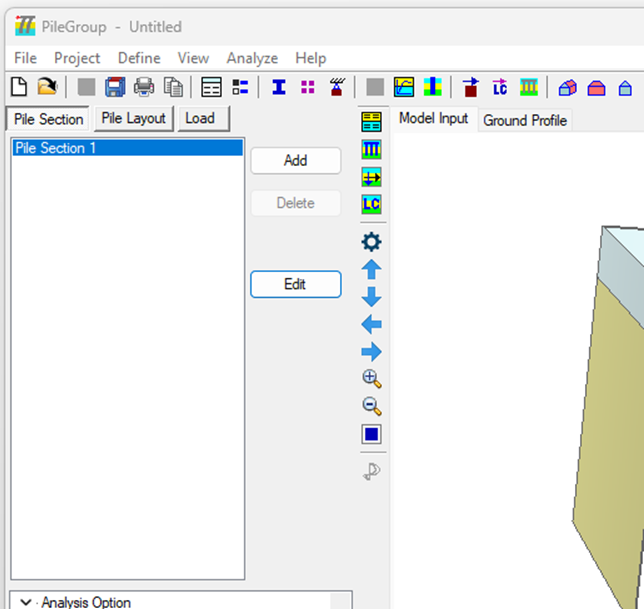
The Define Section window pops up as shown in the figure below.
Select “Circular” from the dropdown menu under Section Type.
Enter 0.6 m for Diameter, D under Section Dimension.
Enter 35 GPa for Young’s Modulus, E and 0.2 for Poisson’s Ratio, ν under Material Properties.
Enter “Pile Section 1” under Pile Section Name.
Click OK button to save the inputs and close the input window.

5.0 Creating the piles within the pile group using pile layout wizard tool
To create the piles within the pile group using pile layout wizard tool, follow these steps:
Clicking the Pile Length and Layout Wizard submenu under the Define main menu.
By default, there are 4 existing piles pre-defined in the group. Those existing piles can be deleted or modified to suit the actual analysis case. Note that the minimum number of piles with the group is 2. This means that the number of piles cannot be reduced to a number less than 2.
For this tutorial example, there are 16 piles (4 by 4) within the group with pile spacing of three pile diameters in both directions.

Select “Rectangular Grid” option from the dropdown menu next to Pile Layout Type.
Enter 4 for the input field next to Number of rows in X direction.
Clicking Edit Spacing button for the row of Number of rows in X direction.
A Defining the pile spacing in X direction input window pops up as shown in the figure below. For four rows of piles in the X direction, three pile spacings are required as input: between Rows 1 and 2, Rows 2 and 3, and Rows 3 and 4.

Enter 2.28 under the Spacing column between Rows 1 and 2, Rows 2 and 3, and Rows3 and 4.
Clicking OK button to save and close the Defining the pile spacing in X direction input window
Enter 4 for the input field next to Number of rows in Z direction.
Clicking Edit Spacing button for the row of Number of rows in Z direction.
A Defining the pile spacing in Z direction input window pops up as shown in the figure below. For four rows of piles in the Z direction, three pile spacings are required as input: between Rows 1 and 2, Rows 2 and 3, and Rows 3 and 4.

Enter 2.28 under the Spacing column between Rows 1 and 2, Rows 2 and 3, and Rows3 and 4.
Clicking OK button to save and close the Defining the pile spacing in Z direction input window
Select “Section 1” option from the dropdown menu next to Pile Section Type.
Enter 15 for the input field next to Pile Length (m).
Keep the default “Rigid pile head connection to pile cap” option under Pile Top Connection.
The Pile Layout Wizard input window with all the inputs described above is shown in the figure below.

Click OK button to save the inputs and close the input window.
A three-dimensional view for the whole pile group is updated in the Model Input window as shown in the figure below.

6.0 Defining pile cap connection conditions
To define or modify the pile cap connection conditions, follow these steps:
Open the Pile to Cap Connection window by clicking the Define Pile to Cap Connection button in the top toolbar or click the Pile to Cap Connection submenu under the Define main menu.
The Pile to Cap Connection input window pops up as shown in the figure below.

Click Set All to Pinned button at the bottom left of the input window to set the pinned pile head connection for all the piles within the group.
Click OK button to save the inputs and close the input window.
7.0 Creating the loads on the pile cap
To create the loads on the pile cap, follow these steps:
Click the Load button in the tabbed window panel located under the top toolbar on the left side of the main input window to open the Load tab.
By default, the first load case will be automatically selected
Click the Edit button on the right side of the tab window to open the Pile Cap Loads window.
The Pile Cap Loads window pops up and is shown in the figure below.

Figure 2-22 Pile cap load input window Alternatively, open the Pile Cap Loads window by clicking the Define Pile Cap Loads button in the top toolbar or clicking the Pile Cap Loads submenu under the Define main menu. This will open the Pile Cap Loads window corresponding to the selected load case from the Load tab window.
Enter 4011 for Shear Load, Fx (kN).
Enter 0 for the other input fields.
Keep the default Pile Cap Load Name as “Load Case 1”.
Enter 0 for the other input fields.
Pressing the Enter key on the keyboard or clicking the Apply button on the bottom of the input window to save the input.
Click OK button to save the inputs and close the input window.
8.0 Creating the load combinations
All the analyses in the PileGroup program are carried out using the load combinations which are based on the input pile cap loads. To create the load combinations on the pile cap, follow these steps:
Open the Load Combination window by clicking the Define Load Combination button in the top toolbar or clicking the Load Combination submenu under the Define main menu.
The Load Combination window pops up and is shown in the figure below.

Enter “Load Combination 1” under the column of Name for the first row.
Enter 1 under the column of Cyclic Load Number for the first row.
Enter 1.0 under the column of “Load Case 1” for the first row.
Click OK button to save the inputs and close the input window.
9.0 Define pile group effect
To define user-specified pile group effect, follow these steps:
Open the Pile Group Effects window by clicking the Define Pile Group Effects button in the top toolbar or clicking the Pile Group Effects submenu under the Define main menu.

Figure 2-24 Pile group effect input window Select the option of “User-specified P-multipliers for pile group effect” from the dropdown menu next to Select Option.
Enter 0.3 under the P-Multiplier (X) column label for Piles 1 to 4.
Enter 0.4 under the P-Multiplier (X) column label for Piles 5 to 12.
Enter 0.8 under the P-Multiplier (X) column label for Piles 13 to 16.
Click OK button to save the inputs and close the input window.
10.0 Run the pile group analysis
To run the pile group analysis, follow these steps:
Open the Run Analysis window by clicking the Run Analysis button in the top toolbar or clicking the Run Analysis submenu under the Analyze main menu.

Click OK button to close the PileGroup Solver window and open the PileGroup Output window to view the analysis results.

11.0 View the pile group analysis results
In the PileGroup Output window as shown in the figure above, the deformations and forces for all the piles within the group can be viewed. The calculated results are also available in tabular form. To check the deformations and forces for the selected piles, follow these steps:
Select “Pile No 7” from the right 3D Model output window by left-clicking on the pile, then right-click.
A floating menu with three options pops up as shown in the figure below.

Select Display the selected pile only option from the floating menu.
The PileGroup Output window will be updated to show the results for the selected pile (Pile No 7) only, as shown in the figure below.

Click “Pile No 3” from the Piles list in the top left of the output window to add the results of “Pile No 3” to the current output window as shown in the figure below.

Figure 2-29 PileGroup output window with the selected piles Click Shear Force, F1 sub-menu under the Forces main menu of the output program to view the shear forces along the piles in the local axis 1 direction. Note that all the forces within the PileGroup program are reported in the local coordination for the structure.

12.0 View p-y curve results along the pile length
To view p-y curve results along the pile length, follow these steps:
Open the P-Y Curve Plots window by clicking the P-Y Curve Plots button in the top toolbar of the output program or clicking the P-Y Curve Plots for Selected Nodes submenu under the More Results main menu of the output program.
The P-Y Curve Plots window pops up and is shown in the figure below.

Select “Pile No 1” from the dropdown menu next to Select Pile No.
Select “Local Axis 1” from the dropdown menu next to Loading Direction.
Select “Load Combination 1” from the dropdown menu next to Load Combination.
Select the checkbox corresponding to Node 12 at a depth of 3.3 m in the Select column to generate the p-y curve for this specific depth.
Click Close button at the right bottom of the window to close the p-y curve plots.
13.0 Generate pile group analysis report
To generate pile group analysis report, follow these steps follow these steps:
Click the Report Generator submenu under the File main menu of the output program.
PileGroup report generator window pops up and is shown in the figure below.

Figure 2-32 PileGroup report generator window Tick the Model Input checkbox to select all the input information.
For the Model Output checkbox, tick the checkboxes for Analysis Result 2D Plot, Analysis Result 3D Plot and Pile Cap Results to select 2D, 3D and pile cap results for the report generation.
For the Load Combination checkbox, tick the checkbox of Load Combination 1.
Select “Microsoft Print to PDF” from the Printer Setup button.
Click OK button to start printing the pile group analysis results into PDF file.
The Save Print Output As window pops up as shown in the figure below.

Enter “Tutorial Example 2” as file name and click Save button to print the pile group analysis results into PDF file.
The figure below shows the printed pile group analysis report.


Comments